Custom Repository Management
To make it easier to create projects in the future, you may want to pre-configure certain repositories in the system for easy assignment to projects. For example, if you help two customers and want a project for each, and own a custom extension that is installed in both environments, you might want to add the repository for that extension's production branch as a pre-defined repo and simply associate it with both projects. That way it is easy to assign them, and any code updates in the repo will be reflected in both projects at the same time.
Select Repositories from the left navigation menu.
Adding a Repository
- Select Repositories from the left navigation menu.
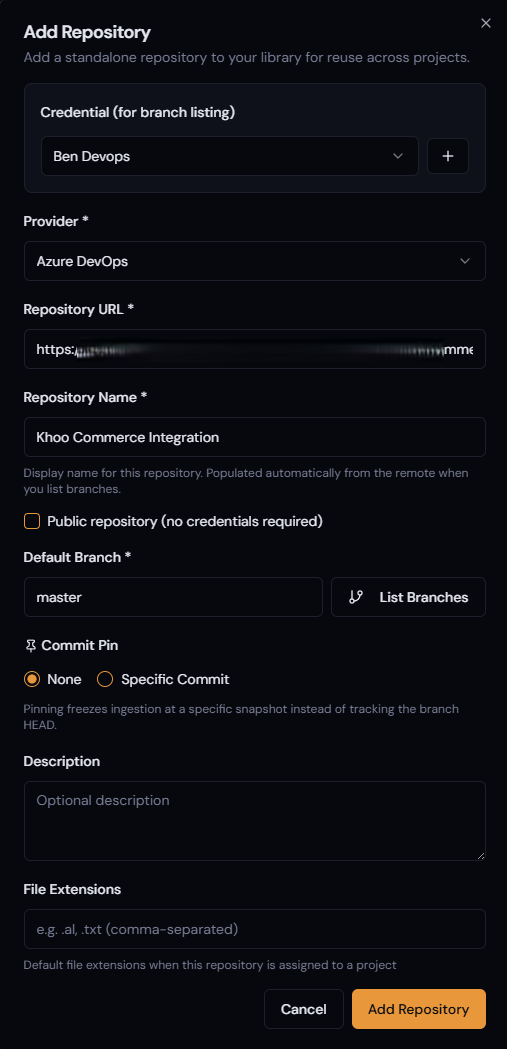
- Press Add Repository — the Add Repository form will appear.
- Select your saved credential that has access to the repo. For GitHub public repos, it is still recommended to select a PAT token, as it gives you higher hourly rate limits.
- Provider: Select either GitHub or Azure DevOps.
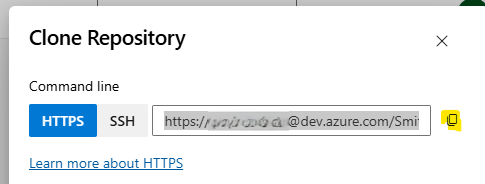
- Repository URL: From the repo on your chosen DevOps platform, copy the URL given when you select Clone Repository (often an HTTPS option) and paste it into the Repository URL field.
- Repository Name is usually populated automatically once it connects to your repo.
- Default Branch: Select which branch to ingest code from — often your main branch.
- Commit Pin: Selecting None is standard behaviour. With this set, when you periodically run the Trigger Ingestion function on your project, it will check each repo within that project and compare the last commit it knows about. If there are more recent commits, it will determine all changed files and download and re-ingest them. This allows Veyo to stay up to date with your production or development codebase. Alternatively, if you wish to keep the code at a specific commit, you can select it here — re-ingesting will then not update to later commits.
- Description: Enter a meaningful description if desired.
- File Extensions: Leave empty — it will parse
.aland.txtautomatically depending on the codebase it encounters. - Select Add Repository.
The repository can then be assigned to projects, and will be ingested when the project is ingested.