System Repository Management
The system administrator of your instance will be able to add and manage System Repositories. These are pre-ingested Business Central codebases that any user can select to assign to a project. It saves time and removes duplication of using the same base code across projects.
System Repositories can be added, and Veyo is configured to obtain them from github.com/StefanMaron/MSDyn365BC.Code.History, which is kindly maintained by Stefan Maroń (github.com/stefanmaron).
Ideally you will have already added a GitHub token to your instance. While the repository is public, and you will be able to ingest at least one System Repo without providing credentials, if you are setting up and want to add a few at a time, you will hit GitHub rate limits on public access.
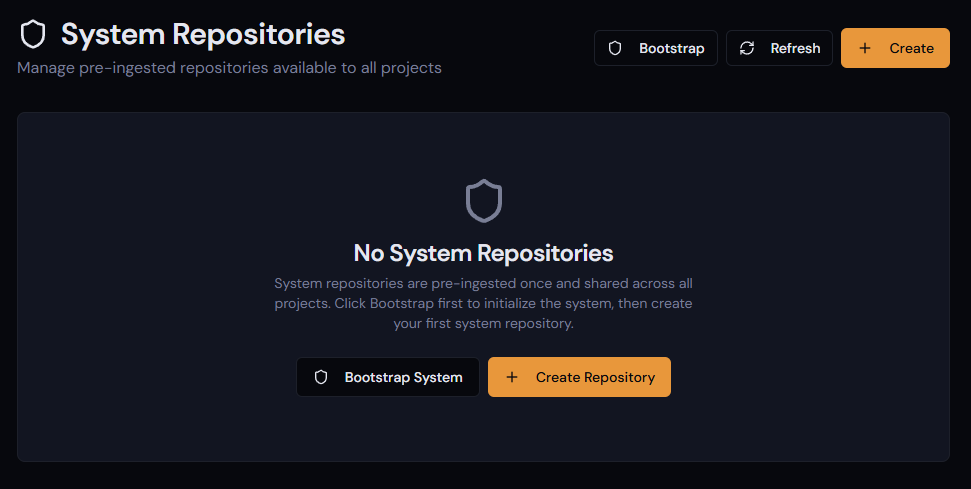
- On a fresh installation of Veyo, you will need to select the Bootstrap System option — this prepares the semantic database.
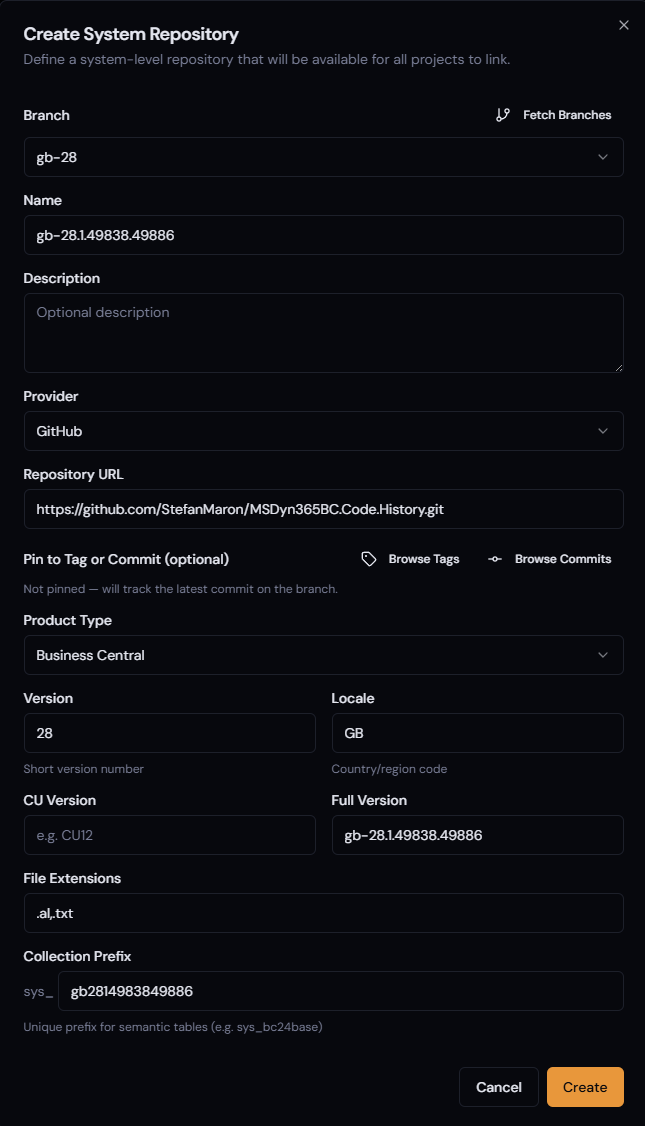
- On the System Repositories page, select Create.
- Use the Branch drop-down; it will list a branch named after each locale and version, for example
W1-28. Select the one you want. - Check the fields for Version, Locale, CU Version, and Full Version to ensure it has been identified properly. This information will be included in payloads to LLM agents and help it remember which version that code is for.
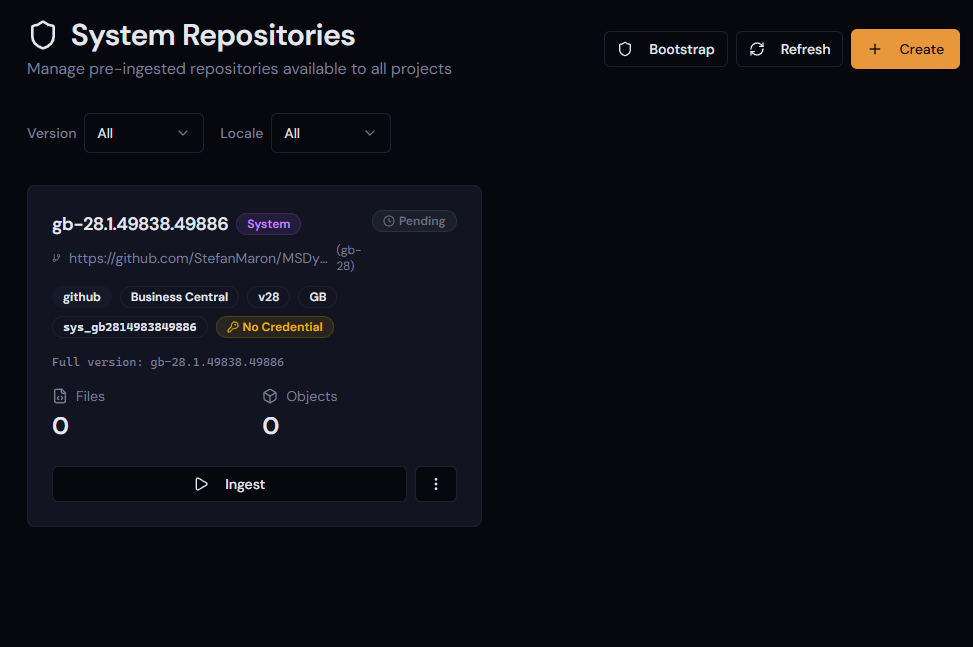
- You will be returned to the System Repositories page and will see a card for your version with a status of Pending (not yet ready).
- Press Ingest — the system will take around 15 minutes to complete ingestion, depending on the speed of the workstation it is running from.
- After a few minutes, it may appear with a warning. This will allow you to download a list of any objects the ingestor could not classify. With recent versions of Business Central this is mainly just test files, which may be addressed in future. If you have repeated problems getting it to classify your custom objects, please raise an issue detailing the first few lines of the AL or C/AL of your custom object, and we will attempt to make sure that pattern is recognised in future.
- After downloading the report CSV, press Force Ready.
The System Repo is now available to assign to projects as a Source or Target version.